How to Make a Packing List on iPhone
You can make a packing list on iPhone three ways. For a quick one-off list, use a checklist in Notes. For a list you reuse, Reminders has free templates. For anything more than that, we'd use a packing app like Luggy: you pick from 258 ready-made items instead of facing a blank screen, with quantities, progress and your destination's plug type, currency and weather on the same screen.
The short version: Notes works for a quick list and Reminders for a repeat one, but you type every item and look everything else up yourself. Luggy is built for trips, so the list and the trip details live together.
We make Luggy, so weigh our opinion accordingly. The Notes and Reminders steps below come from Apple's own iPhone User Guide for iOS 27, checked on November 5, 2026. On an older iOS version, some menus may look different.
How to make a packing list in Notes
Notes is the fastest route, and a good one if you are packing for one trip and just want boxes to tick. These steps follow Apple's pages on creating and formatting notes and creating a checklist.
- Open the Notes app and tap the New Note button.
- Type a title, like "Lisbon packing list", and tap return. The first line becomes the note's title.
- Tap the Checklist button to start the list.
- Type an item and tap return. Each return adds a new item.
- Tap Done when you are finished.
When you pack, tap the empty circle next to an item to mark it as done.
Add categories
A long checklist is hard to scan, so split it up by category:
- Type a category name, like "Clothes", on its own line.
- Select the text, tap the Format button, then tap Heading or Subheading.
- Place the cursor under the heading and tap the Checklist button to start that category's items.
Each heading can be collapsed and expanded, so you can fold away Clothes once it is packed and see what is left.
A few useful extras
- Reorder: drag an item to a new spot. Swipe an item right to indent it under another one, like "Chargers" with "Phone" and "Watch" below it.
- Sink checked items: Apple's checklist article says you can go to Settings > Apps > Notes, tap Sort Checked Items, then choose Manually or Automatically. Checked items then move to the bottom.
- Pack with someone: open the note, tap the Share button, tap the menu under the note title, then tap Share a Link. Everyone needs to be signed in to an Apple Account with Notes turned on in iCloud settings, and all participants see changes in real time.
- Print it: tap the Share button, then Print, under View More if you do not see it.
What Notes leaves out
Notes has no template feature in Apple's guide, so reusing a list takes a small workaround. Keep a master note with nothing checked, and copy its text into a new note for each trip.
Apple does say you can uncheck all items to start over, but its iPhone pages do not spell out the taps, so we will not guess at them here. Apple's Notes pages also list no timed alerts, so a note will not nudge you to start packing.
Notes is enough if: you take a trip or two a year, your list is short, and you would rather not learn anything new.
How to make a packing list in Reminders
Reminders takes a couple more taps than Notes, and it gives you more for them. Apple even names this use: its templates page says you can save a list as a template "to reuse it for routines, packing lists, and more."
Create the list
These steps follow Apple's page on organizing multiple lists.
- Open the Reminders app and tap the Add List button. You may have to tap Back to see your lists.
- Enter a name, like "Packing", then choose a color and symbol.
- Tap List Type, then choose Standard.
- Tap Done.
Skip the Groceries list type. It sorts items into categories such as Produce and Seafood, which is no help with socks.
Add sections and items
- In your list, tap the More button, tap New Section, then enter a name, like "Toiletries". Repeat for each category. (Apple's steps)
- Tap the New Reminder button, type the item, then tap Done. There is no quantity field to rely on here, so put the count in the title: "Socks x 7".
- To move an item to another section, touch and hold it, then drag it there.
One shortcut: on an iPhone with Apple Intelligence (iPhone 15 Pro, iPhone 15 Pro Max, or iPhone 16 and later), tap the More button, then Auto-Categorize, and related reminders get sorted into sections. It is not available in every language or region.
Check items off
Tap the empty circle next to an item to mark it as completed. Completed items are hidden, so the list shrinks down to what is still missing, which suits packing well.
To see them again, tap the More button, then Show Completed. Be careful with Clear in that same view: it deletes the completed items.
If you want a nudge, tap an item, tap the Date and Time button, then choose an option. A "Start packing" item can then remind you the night before.
Save it as a template
This is the feature that makes Reminders a real option for regular travelers. Do this before you start checking things off.
- Open your list, tap the More button, then tap Save as Template.
- Enter a name, like "Every Trip".
- Choose whether to turn on Include Completed Reminders, then tap Done.
For the next trip, tap the More button in your lists view, tap Templates, tap your template, enter a name for the new list, then tap Create. Apple notes that later changes to the original list do not affect the template.
Pack with someone else
In the list, tap the Share button and choose how to send the invitation, such as Messages or Mail. People who accept can add and edit items and mark them as completed. Everyone must be signed in to their Apple Account with Reminders turned on in iCloud settings.
On a shared list, you can also assign an item to a person by typing @ and their name, which is handy for sorting out who is bringing the sunscreen. Need paper? Tap the More button, then Print.
What Reminders leaves out
You still type every item yourself, at least the first time. And Reminders knows nothing about your trip: dates, destination, plugs and weather all live somewhere else.
Reminders is enough if: you travel regularly with a fairly stable list, or you pack with a partner or family.
How to make a packing list in Luggy
A packing app is built around trips instead of general notes or tasks. Here is how it works in Luggy, the one we make.
- Add a trip with a name, destination and dates. A new trip starts empty. Luggy does not generate a list for you.
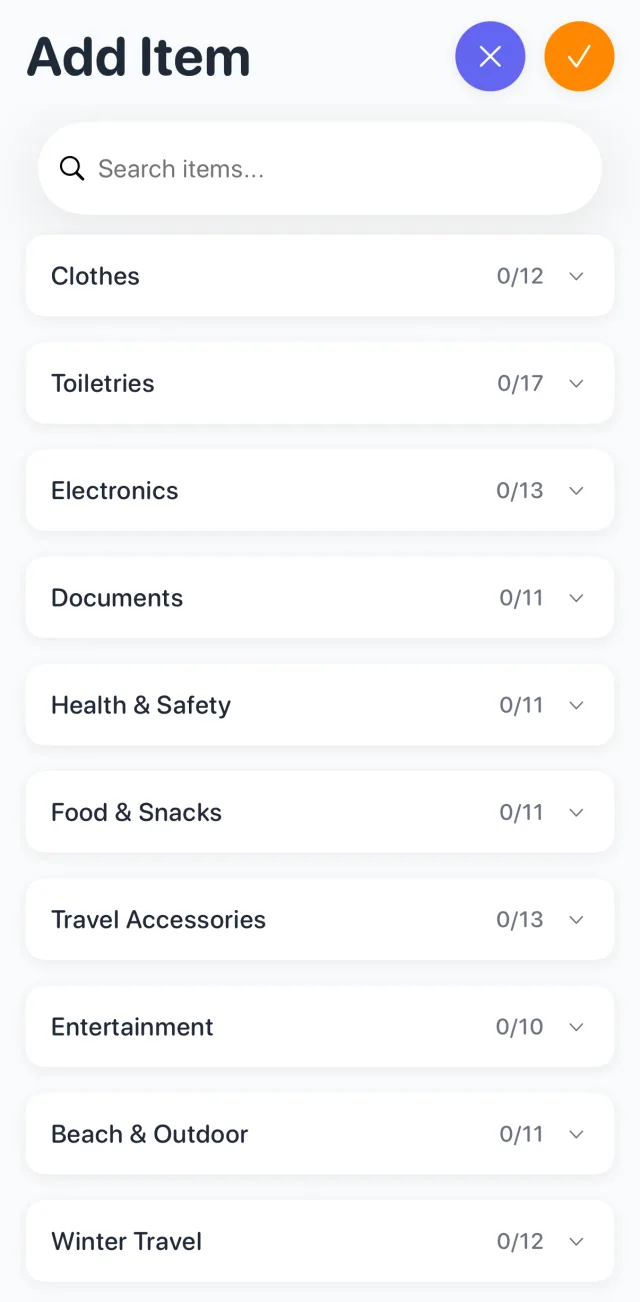
- Open the trip and add items from the built-in list of 258 items in 25 categories, such as Clothes, Toiletries, Electronics, Documents and Health & Safety. You can search it, or type your own items.
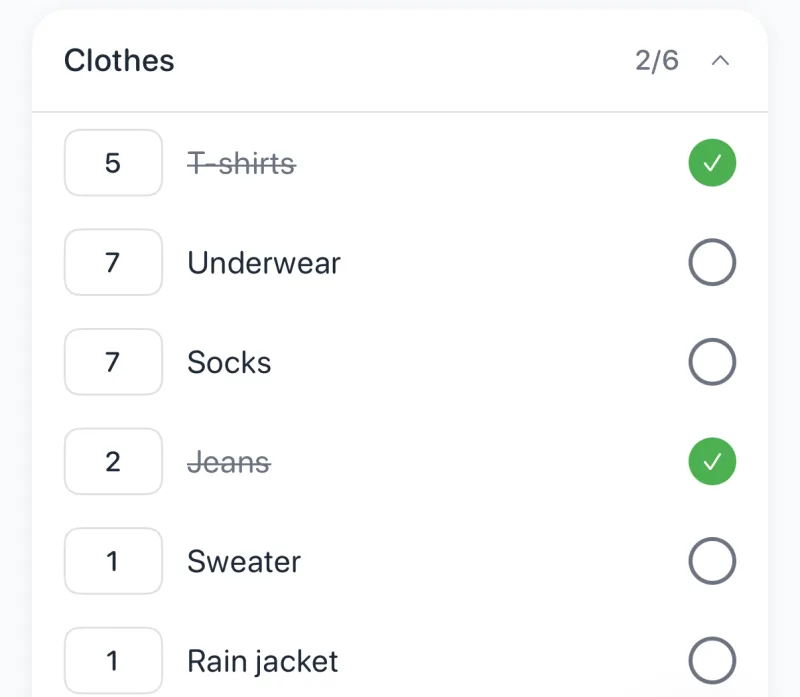
- Set a quantity on anything you need more than one of.
- Check items off as they go in the bag.
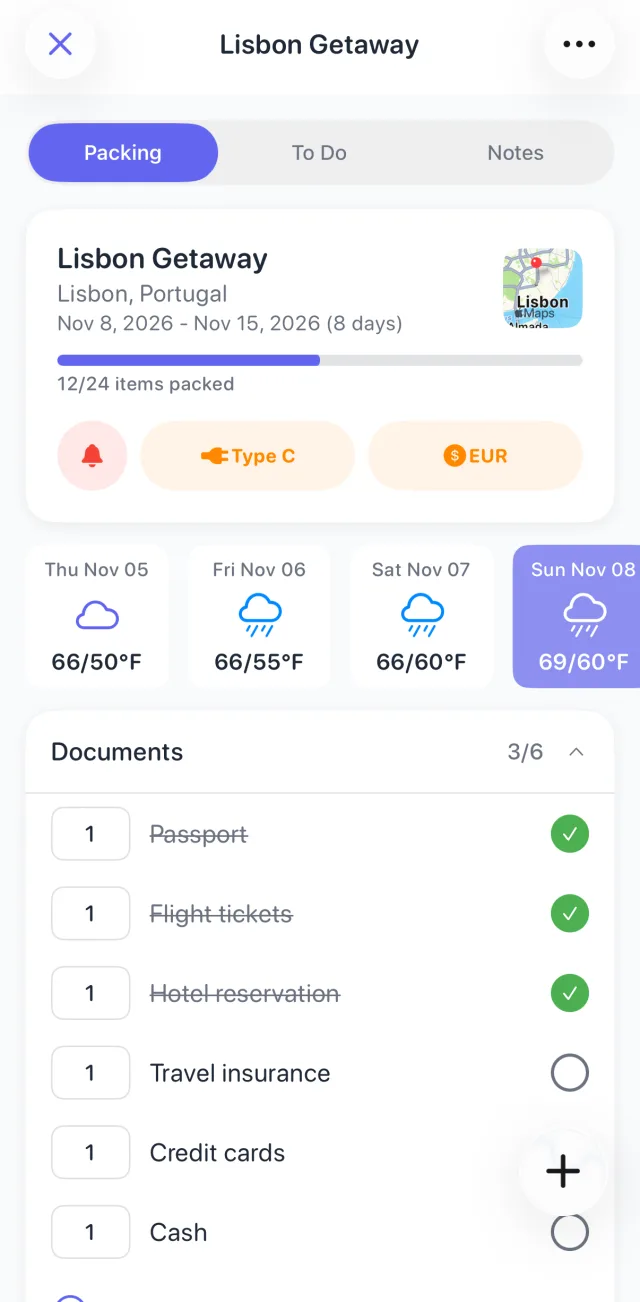
The trip then shows a progress bar and an "x/y items packed" count, so you can see how far along you are. Items stay grouped by category, and you can reorder both the items and the categories.
The other reason to use a packing app is what sits next to the list. On the trip screen you also get:
- Plug types for the destination, with voltage and frequency
- Currency, with an exchange-rate converter
- A daily weather forecast in °F or °C, with your trip dates highlighted. It only covers the next several days, so it helps close to departure, not for a trip months away
- A to-do list for things to do before you leave, which you write yourself
- Notes for the trip
What to know before you start
The free version covers one trip (a completed trip still counts), with ads, and includes the full item list, quantities, your to-do list and the plug, currency and weather info. Luggy+ (monthly, yearly or lifetime) adds unlimited trips, copying a past trip, custom lists you can reuse, timed packing reminders, PDF export, custom categories and iCloud sync across your devices, with no ads.
Luggy has no shared lists, so if you need to edit one live list with someone else, use Notes or Reminders. There's no Android or web version.
A packing app is worth it if: you would rather pick from a list than face a blank screen, you want quantities and progress built in, or you are heading abroad and want plug, currency and weather next to your list.
Luggy: packing list app
Build a packing list for each trip from 250+ ready-made items in 25 categories, check things off as you pack, keep a pre-trip to-do list, and see your destination's plug type, currency and weather. Free to download.

Which one should you use?
- "I'm planning one trip." Luggy's free version covers it, or Notes if you only want a few lines.
- "I take the same kind of trip often." Luggy+, which can copy a past trip or apply your own list, or Reminders with a free template.
- "My partner and I pack together." Reminders, so you can assign items, or a shared note.
- "I never know where to start." A packing app, or copy one of our lists below into Notes.
- "I am going abroad for the first time." A packing app helps most here, with plug and currency info next to your list. You can also use Notes and look those up in our plug guide by country.
Start from a list, not a blank screen
Whichever you pick, the list itself matters more than the app. Copy from one of these and cut what you do not need:
- International travel packing list
- Carry-on packing list for a week
- Weekend trip packing list
- Beach vacation packing list
- Commonly forgotten items, good for a final check in any app
Things to do before you go, like calling the bank or holding the mail, make a good second list. Our before traveling checklist has them in order.
Common questions
Can I make a checklist on iPhone without an app?
Yes. Notes and Reminders both come with your iPhone. In Notes, tap the Checklist button in any note. In Reminders, every item already has a circle to tap, so any list works as a checklist.
Is Notes or Reminders better for a packing list?
Notes is quicker to start, and fine for a one-off trip. Reminders is better if you will use the list again, because you can save it as a template, and if you want to assign items to people or get an alert at a set time.
Can I share a packing list on iPhone?
Yes, with Notes or Reminders. Both let you invite people through the Share button, and everyone sees changes, as long as they are signed in to an Apple Account and have that app turned on in iCloud settings. Luggy does not have shared lists.